
Have you ever recorded a video that looked great on your phone but appeared blurry, pixelated, or soft after uploading it to social media? This is a common problem for creators, especially when the original video was recorded in low resolution, captured in poor lighting, or compressed several times before publication. Make Your Video Quality Up to 4K: How to Improve Video Resolution Online
The good news is that modern video-editing and AI-powered tools can make a noticeable difference. Today, you can increase video quality, sharpen details, reduce unwanted noise, improve colors, and in some cases upscale footage to 4K resolution without needing a professional editing studio.
However, there is an important misconception about 4K enhancement. Converting a 720p or 1080p video into a 4K file does not magically recreate every detail that was never captured by the camera. The goal of an upscaling tool is to estimate missing information and produce a cleaner, sharper and higher-resolution result.
In this guide, we will look at practical ways to make your video quality up to 4K, including AI video enhancement, traditional editing methods, mobile applications, online tools and settings that can help you achieve better results.
What Does 4K Video Quality Actually Mean?
Before improving a video, it is useful to understand what 4K means.
For standard consumer video, 4K UHD generally refers to a resolution of 3840 × 2160 pixels. This provides four times as many pixels as Full HD 1920 × 1080.
More pixels can produce a sharper image, especially when watching content on a large screen.
But resolution is only one part of video quality.
A video with 4K dimensions can still look terrible if the original footage is extremely blurry, heavily compressed, poorly exposed, or affected by camera shake.
That is why simply changing the export setting from 1080p to 4K is not the same thing as genuinely improving the video.
Can You Really Convert a Video to 4K?
Yes, you can upscale a video to 4K, but the result depends heavily on the original footage.
If your source video is already 1080p and reasonably sharp, a good upscaling process can produce a convincing 4K output.
If your source is 720p, the software has to create considerably more information.
If the source is extremely low quality, no application can perfectly recover details that were never recorded.
AI enhancement can nevertheless make the footage appear cleaner by analyzing frames and estimating edges, textures and other visual information.
AI Video Upscaling Explained
One of the biggest developments in video editing is AI video enhancement.
Traditional upscaling mainly enlarges pixels mathematically. AI-based systems can analyze the image and attempt to reconstruct details while increasing resolution.
For example, an AI enhancer may identify an object such as a face, building or vehicle and attempt to produce more defined edges.
It can also reduce compression artifacts and noise.
This makes AI particularly useful when you want to improve blurry video quality rather than simply increase the dimensions of the file.
However, AI enhancement should not be treated as magic. Aggressive settings can create unnatural skin, artificial textures or excessive sharpening.
The best results usually come from moderate enhancement.
How to Make Video Quality Up to 4K on Mobile
You don’t necessarily need a powerful computer to improve video quality.
Several modern mobile editing applications offer high-resolution export and, depending on the application, AI-powered enhancement features.
The general process is similar across many editors.
First, import your original video.
Next, look for an option such as Enhance, AI Enhance, Upscale, Sharpen, Super Resolution, or a similar feature.
Apply the enhancement carefully and preview the result.
Then export the final video at 4K if your application and device support it.
Remember that exporting at 4K can create a much larger file than the original.
Why the Original Video Matters
One of the most important rules of video enhancement is simple:
Always keep the original file.
Avoid downloading your own video from WhatsApp, Facebook, Instagram or another social platform and then trying to enhance that copy.
Social platforms often compress uploaded videos.
If you download the compressed version, enhance it and upload it again, you may be working with already-damaged footage.
Instead, keep your original camera recording and use that as the source.
The difference can be surprisingly noticeable.
Improve Lighting Before Upscaling
Resolution cannot completely fix poor lighting.
If a video is extremely dark, increasing its resolution will not automatically reveal every hidden detail.
Before applying an upscale effect, consider adjusting exposure, shadows, highlights and contrast.
A small improvement in lighting can make the enhancement process more effective.
For example, if a face is underexposed, slightly lifting the shadows may help reveal facial details. However, increasing shadows too aggressively can introduce noise.
The goal is to create a balanced image before asking the AI or editor to upscale it.
Reduce Noise Before Increasing Resolution
Noise is another major problem.
Videos recorded in dark environments often contain grain or digital noise. If you upscale that footage first, the noise itself can become larger and more visible.
A better workflow can be:
Noise reduction → Color correction → Sharpening → Upscaling → Final export
The exact order can vary depending on the software, but the general principle is useful.
You want to give the upscaling system the cleanest source possible.
Don’t Overuse Sharpening
Sharpening can make a video look clearer, but excessive sharpening creates ugly outlines around objects.
You may notice bright or dark halos around faces, text or buildings.
This is sometimes called an oversharpened appearance.
When trying to make video quality better, many beginners increase sharpness as much as possible. That usually produces the opposite of a professional result.
Instead, increase sharpness gradually and compare the enhanced footage with the original.
If small details become clearer without producing obvious halos, the setting is probably closer to a natural result.
Make a 1080p Video Look Better in 4K
1080p is actually a good starting point for 4K upscaling.
A Full HD video contains enough information for modern enhancement systems to work with, particularly when the source was recorded using a decent camera.
Start with the highest-quality original 1080p file.
Apply moderate noise reduction if required.
Correct the colors.
Use AI enhancement or a high-quality scaling method.
Finally, export at 3840 × 2160.
The resulting video will technically be 4K and may look substantially better than the original, although it should not be confused with footage natively recorded at 4K.
What About 720p Videos?
720p videos can also be upscaled.
The improvement depends heavily on the footage.
If the source is clear but simply low resolution, an AI enhancer may produce a respectable result.
If it is heavily compressed, blurry and full of artifacts, the software has much less reliable information to work with.
In such cases, a moderate upscale may look better than forcing an aggressive 4K conversion.
Sometimes a clean 1080p enhancement can look more natural than a heavily processed fake-looking 4K video.
Improve Video Quality Online
For users who don’t want to install desktop software, online video enhancer tools can be convenient.
The basic process usually involves uploading the original video, selecting an enhancement or upscale option, waiting for processing to complete and downloading the finished file.
The main advantage is convenience.
You don’t necessarily need a powerful graphics card because the processing may happen on the service’s servers.
The downside is that large videos can take time to upload and process.
Privacy is another consideration.
Before uploading personal or sensitive footage, read the service’s privacy policy and understand how uploaded files are handled.
Make Video Quality Better for YouTube
If your final destination is YouTube, don’t focus only on resolution.
YouTube processes uploaded videos, so the quality of the source file matters.
Start with the original footage.
Edit it carefully.
Avoid repeatedly exporting and re-importing the same video because every lossy export can potentially introduce additional compression.
When your editing is finished, export a high-quality master file.
If the footage benefits from 4K upscaling, you can export at 3840 × 2160 and then upload that file.
However, don’t expect 4K export alone to fix an extremely poor recording.
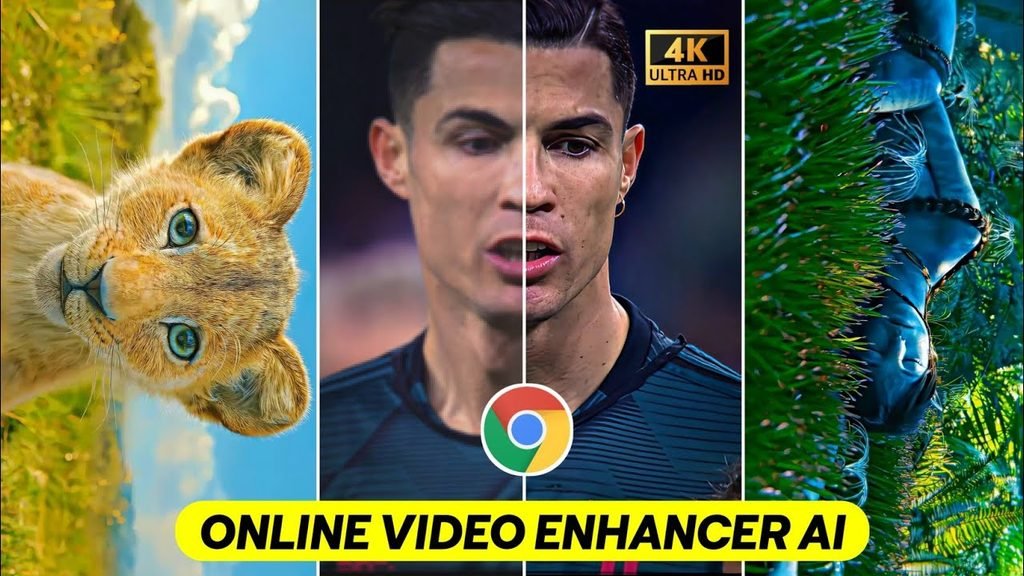
Improve Video Quality for TikTok and Reels
Short-form platforms such as TikTok, Instagram Reels and YouTube Shorts have their own compression systems.
Vertical video should normally be prepared in a suitable vertical format before upload.
For a 4K vertical project, the corresponding resolution is commonly 2160 × 3840 pixels.
But again, a larger resolution does not automatically mean better quality.
Make sure your source footage is clean, properly exposed and correctly framed.
Avoid unnecessary re-encoding.
And upload the highest-quality version you have.
How AI Can Improve Faces
Faces are particularly sensitive to enhancement.
AI tools can sometimes make facial features appear clearer by reconstructing edges and reducing noise.
But aggressive face enhancement can also change someone’s appearance.
You might notice overly smooth skin, strange eyes, artificial hair or plastic-looking facial textures.
For this reason, use face enhancement carefully.
A professional-looking result should still resemble the original person.
Natural detail is better than artificial detail.
Recovering Blurry Video
If your footage is slightly soft because the camera missed focus, sharpening and AI enhancement may help.
But there is a limit.
A completely out-of-focus face cannot be perfectly reconstructed because the original detail was never captured clearly.
The same applies to motion blur.
If a person moves quickly while the shutter speed is too slow, their face may contain motion streaks. Increasing resolution does not automatically remove those streaks.
Some specialized AI tools can attempt motion restoration, but results vary.
Export Settings for 4K Video
After enhancing the video, export settings become important.
For standard 4K UHD, choose:
Resolution: 3840 × 2160
Frame rate: Match the original footage when possible
Aspect ratio: Match your project
Format: MP4 is widely compatible
Codec: H.264 or H.265, depending on your target platform and software
Quality/bitrate: Use a sufficiently high setting to avoid unnecessary compression
The exact bitrate depends on frame rate, codec and the type of footage.
Fast-moving gaming footage, for example, can require more bitrate than a relatively static talking-head video.
Why Your 4K Video May Still Look Bad
Sometimes users upscale a video and are disappointed because it still doesn’t look sharp.
There are several possible reasons.
The original footage may be too low quality.
The source may have been compressed multiple times.
The enhancement settings may be too aggressive.
The export bitrate may be too low.
The viewing platform may have compressed the final upload.
Or the video may simply contain motion blur or focus problems that resolution cannot solve.
Understanding these limitations helps you avoid unrealistic expectations.
Free vs Paid Video Enhancers
There are both free and paid options for video quality enhancement.
Free applications can be useful for basic sharpening, color correction and resolution changes.
Paid AI tools may offer more sophisticated models, higher-quality processing and additional controls.
However, expensive software is not automatically better for every video.
The best option depends on your source footage.
Before paying for an enhancement service, test a short section of your video and compare the original with the processed version.
A Simple Workflow for Better 4K Results
If you want a straightforward workflow, start with the original recording.
First, remove unnecessary sections.
Then correct exposure and color.
Apply moderate noise reduction if the footage contains visible noise.
Use AI enhancement or high-quality upscaling.
Apply a small amount of sharpening if necessary.
Watch the result at 100% scale.
If the image looks unnatural, reduce the enhancement.
Finally, export your finished video at 4K resolution using a suitable bitrate.
This workflow is simple enough for beginners while still producing a more controlled result.
Is 4K Always Better?
Not necessarily.
A high-quality native 1080p recording can look better than a poorly processed 4K upscale.
The goal should not be to chase a number.
The goal is better visual quality.
If your original video is already clean and sharp, moderate enhancement may be all you need.
If the footage is severely damaged, it may be better to preserve a natural-looking 1080p result rather than forcing artificial 4K detail.
Final Thoughts
Modern technology has made it much easier to improve video quality and upscale footage to 4K. AI enhancement can help reduce noise, sharpen details and reconstruct some information, particularly when the original video is reasonably clear.
For the best results, always start with the highest-quality source available. Avoid repeatedly downloading and re-uploading compressed versions, correct lighting and colors before enhancement, and don't overuse sharpening.
If you're working with 1080p footage, 4K upscaling can be a useful way to produce a larger and potentially cleaner final file. With 720p or lower-resolution footage, results will depend much more on the original quality.
Most importantly, remember that 4K is a resolution—not a guarantee of quality. A well-recorded, carefully processed video will always have an advantage over footage that is simply enlarged.
Whether you are preparing content for YouTube, TikTok, Instagram Reels, Facebook or personal use, the right combination of source quality, enhancement, editing and export settings can make your videos look significantly more polished.
With the right workflow, even an ordinary recording can be transformed into a cleaner, sharper and more professional-looking video suitable for modern high-resolution screens.