AI video editing has completely changed the way creators make content for TikTok, YouTube Shorts, Instagram Reels, and Facebook. One of the latest trends attracting attention is the viral award AI video edit, where ordinary photos or short clips are transformed into cinematic award-style videos using artificial intelligence. The best part is that you can create this type of content without expensive software if you use the right free tools and follow a simple workflow.Viral Award AI Video Edit Tutorial Step by Step for Free
In this guide, we will explain how to create a viral award AI video from start to finish. You will learn how to prepare your image, generate an AI video, add cinematic effects, create captions, synchronize audio, and export the final video for social media. The process is beginner-friendly and can be completed mostly from a smartphone.
What Is a Viral Award AI Video?
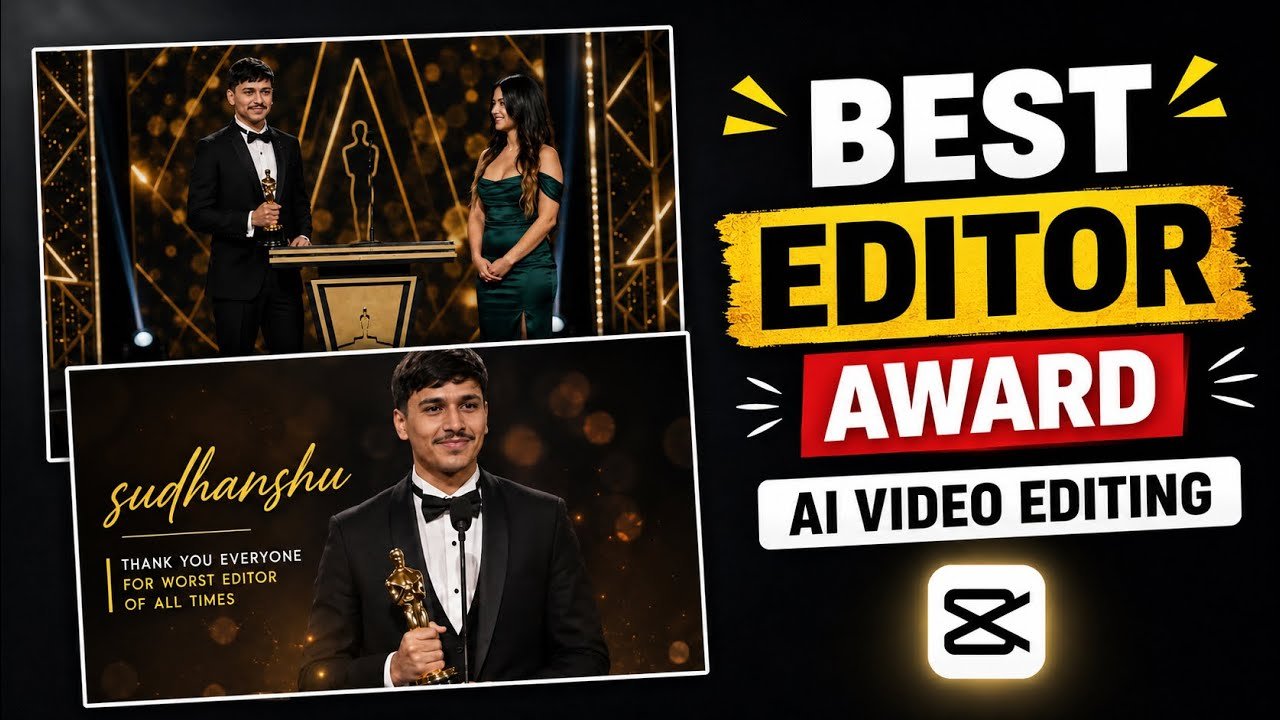
A viral award AI video is a short cinematic video designed around an award, achievement, announcement, or dramatic presentation. The concept usually combines an attractive background, a person or character, cinematic camera movement, dramatic lighting, text animations, music, and AI-generated visuals.
For example, you can start with a normal portrait and turn it into a professional-looking award ceremony scene. AI can help create realistic movement, camera effects, lighting, and environmental details. After generating the video, you can use a free editor to add titles, sound effects, transitions, and subtitles.
The reason these videos perform well is that they immediately create curiosity. Viewers want to know what award is being presented, who is receiving it, and what happens next.
Step 1: Choose Your Video Concept
Before opening any AI tool, decide what your video will be about. A clear concept makes the final result much better.
You could create an imaginary award presentation, a creator achievement video, a motivational award announcement, a fictional ceremony, or a social-media-style achievement clip.

Video prompts:
first video prompt🎥
Is ladke ko bench par se uthta hua dikhao aur bilkul bhi smile na kare
Second video pormpt🎥
A cinematic awards stage scene with the same original woman’s face preserved exactly (no face change, no distortion). She stands at a microphone holding a card, wearing a red elegant gown, with warm golden bokeh lights in the background.
She gently looks down at the card, then raises her eyes toward the audience. Her lips move naturally in sync as she says:
“The Best Pashtu tech creator award goes to… Farid Wazir.”
She pauses briefly before saying “Farid Wazir” for dramatic effect.
Keep the face identity exactly the same, no morphing, no AI face replacement. Only subtle lip movement and natural blinking.
Ultra realistic, 4K, cinematic lighting, soft shadows, smooth motion, shallow depth of field.
third video prompt 🎥
es ladke ko esa dikho jaise ki ye ladka award ko hold kiye huye hai or smile nhi kar rha hai.
Remember keep his face 100% same as in the refrence picture.

Second reference and prompt ❤️
1 st pic me jo ladka hai usko remove kar ke mujhe add kar do yani ki 2secound wale ladke ko or hai
face change na ho 2secound wale ladke ka ok
or ha pose and reaction sab 1st wale pic ki trha rhe or bs
second wale ladke ka 100% same face rhe ok
Second reference and prompt

reference and prompt ❤️ 1st pic
1 st pic me jo ladka hai usko remove kar ke mujhe add kar do yani ki 2secound wale ladke ko or hai
face change na ho 2secound wale ladke ka ok
or ha pose and reaction sab 1st bale pic ki trha rhe or bs, no smile.
secound bale ladke ka 100% same face rhe ok
Keep the concept simple because short-form videos usually work best when the viewer understands the idea within the first few seconds.
For example, your concept could be:
“A young creator receives a prestigious digital creator award on a cinematic stage.”
Once you have the concept, decide what text will appear on the screen. Keep the main title short and easy to read.
Step 2: Prepare Your Image
The next step is to prepare a suitable image. A clear, high-quality portrait generally produces better AI video results than a blurry or heavily compressed image.
Try to use an image where the subject is clearly visible. Avoid images with excessive filters, extreme shadows, or complicated backgrounds.
If your original photo needs improvement, you can use a free AI image-enhancement or editing application. However, don’t over-edit the image before generating the video because excessive modifications can sometimes make the AI-generated result look unnatural.
Your goal should be to create a clean starting image that the video-generation model can understand easily.
Step 3: Create the AI Video
Now you can use an AI video-generation platform that supports image-to-video generation. Upload your prepared image and describe the movement you want.
Your prompt should explain the environment, camera movement, lighting, subject movement, and overall style.
For example, a useful prompt structure is:
Subject + Environment + Camera Movement + Lighting + Realism + Duration
You could describe a cinematic award stage, slow camera movement, realistic lighting, subtle subject movement, audience atmosphere, and professional presentation.
Avoid asking the AI to make too many complicated movements simultaneously. Simple movements often look more realistic.
For example, a slow camera push-in combined with subtle natural movement can produce a more professional result than asking for multiple dramatic actions.
Step 4: Keep the Video Short
For TikTok, Reels, and YouTube Shorts, short videos are usually easier to watch completely.
A video between approximately 8 and 15 seconds can be enough for a simple award-style concept.
Instead of trying to tell a complete story in one long clip, focus on creating one strong visual moment. You can then add text and audio during editing.
A short video also gives you more opportunities to create multiple versions and test which one gets better engagement.
Step 5: Edit the Video in a Free Editor
Once your AI video has been generated, import it into a free mobile video editor.
Start by setting the project to a vertical 9:16 format. This is suitable for TikTok, Instagram Reels, YouTube Shorts, and many other short-video platforms.
Trim unnecessary frames from the beginning and end. The first second is especially important because viewers can quickly scroll away if nothing interesting happens.
Try starting with the most visually attractive moment rather than wasting several seconds on an introduction.
Step 6: Add an Award Title
Now add the main title to your video.
A strong title could be something like:
“THE CREATOR OF THE YEAR”
or:
“SPECIAL AI CREATOR AWARD”
Use large, readable typography and keep the text on screen long enough for viewers to understand it.
You can also create a smaller subtitle containing the person’s name or achievement.
Avoid filling the screen with too much text. A clean design generally looks more professional.
Step 7: Add Cinematic Effects
Cinematic effects can make a simple AI clip look significantly more polished.
You can experiment with a slow zoom, subtle motion blur, light effects, particles, lens effects, or a gentle camera shake.
However, effects should support the video rather than distract from the subject.
A common beginner mistake is adding too many transitions and effects. If every second contains a different effect, the video can look less professional.
Instead, use a small number of effects consistently.
Step 8: Add Background Music
Music is one of the most important parts of a short viral video.
For an award-style video, choose music that creates a sense of achievement or excitement. Cinematic instrumental music can work particularly well.
If you are publishing commercially, make sure you have permission to use the music. Using copyrighted music without the appropriate rights can create problems for your content.
You can also use royalty-free or platform-provided music libraries.
Keep the music volume balanced so that any voiceover or important sound effects remain understandable.
Step 9: Add Sound Effects
Small sound effects can make an AI video feel much more dynamic.
For example, you might use a subtle whoosh when the title appears, a camera sound during a transition, or a short impact sound when the award text appears.
Don’t use sound effects randomly. Try to synchronize them with visual events.
When the title appears, the sound effect should ideally happen at the same moment. This synchronization makes the edit feel more professional.
Step 10: Add Voiceover
If your concept includes narration, you can add a voiceover using a suitable text-to-speech tool or your own recorded voice.
Keep the script short because the video itself is short.
For example, a simple narration could explain that a creator has received a special award or achieved an important milestone.
The voice should match the mood of the video. A calm presentation works for a formal award ceremony, while an energetic voice can work better for an exciting social-media announcement.
Step 11: Use Captions
Captions can increase accessibility and help viewers understand the video even when their device is muted.
Use automatic captions if your editor supports them, then manually correct any mistakes.
Choose a readable font and make sure the text contrasts clearly with the background.
Don’t place important captions over the subject’s face or other important visual elements.
Step 12: Improve the First Three Seconds
The opening is arguably the most important part of a short-form video.
Instead of starting with a blank screen, begin with an interesting visual or title.
For example, you could immediately show the award stage and display:
“WAIT FOR THE AWARD REVEAL…”
Then reveal the main award moment a few seconds later.
This creates curiosity and gives viewers a reason to continue watching.
Step 13: Export in High Quality
After completing your edit, export the video in a suitable vertical resolution.
For most social-media platforms, 1080 × 1920 is a practical choice for vertical videos.
Use a good-quality video format and avoid repeatedly exporting and re-importing the same file because multiple compression cycles can reduce quality.
Before uploading, watch the complete video once to check the audio, captions, timing, transitions, and overall quality.
Step 14: Write an Engaging Caption
Your editing process doesn’t end when the video is exported. The caption can also help attract viewers.
Instead of writing something generic like “AI award video,” create curiosity.
For example:
“Would you accept this AI-generated award? 🏆”
You can then encourage viewers to comment their opinion.
However, avoid making unrealistic claims that could mislead viewers. If the video is AI-generated or fictional, it can be useful to make that clear when appropriate.
Step 15: Add Relevant Hashtags
Use hashtags related to your actual content rather than adding dozens of unrelated trending hashtags.
Possible categories include AI video, AI editing, video editing, cinematic video, and content creation.
The exact hashtags that work best can change over time, so experiment with different combinations and observe which videos receive better engagement.
Final Tips for Making Viral AI Award Videos
The biggest secret isn’t simply using AI. The real difference comes from combining a strong idea, a good opening, realistic visuals, clean editing, suitable music, and a clear story.
Don’t expect every video to become viral on the first attempt. Create several versions and test different openings, titles, music, and editing styles.
Also remember that AI-generated content can sometimes contain strange movements or visual inconsistencies. Always review the generated footage before publishing it.
A successful AI video doesn’t need to be extremely complicated. In many cases, a simple cinematic scene with realistic movement, strong text, good music, and excellent timing can outperform a video overloaded with effects.
Conclusion
Creating a viral award AI video doesn’t necessarily require expensive equipment or professional editing software. With a good image, an AI video generator, and a free mobile editing application, beginners can create impressive short-form content.
The complete workflow is straightforward: choose an idea, prepare your image, generate the AI video, edit it vertically, add an award title, synchronize music and sound effects, add captions, improve the opening, and export in high quality.
The most important thing is experimentation. Try different concepts, camera movements, titles, music, and hooks. Over time, you will discover which style works best for your audience.
AI video creation is developing rapidly, and creators who learn how to combine AI generation with traditional editing skills can produce content that looks much more professional than a basic AI-generated clip.